Headings that make senseto readers and search engines
A title too long for search results, a second H1, an H3 with no H2 above it. Gorby checks your heading structure and shows you what to fix before you publish.
Included in every paid plan Web and Windows app Title length, H1s, and hierarchy
 Blog draft - Gorby
Most shoppers skim. A good product description answers their questions before they think to ask.
Lead with what the product does for the buyer, then back it up with the details.
Short paragraphs and bullet points help readers find what they need.
SEO Checks
Analyzes document structure for SEO best practices
H1 title length issue
SEO Impact: Title length affects search engine visibility
Title should be between 20 and 60 characters. Current: 69
Incorrect header hierarchy
This H3 should be nested under H2. Consider restructuring your headings.
Multiple H1 tags detected
There should only be one H1 per document. Consider changing this to a lower-level heading.
In Gorby, change a heading's level with the H1, H2, and H3 toolbar buttons
Try it: click a heading or press Select, then shorten the title or change the heading level.
Why structure matters
Your headings are the page's outline
Readers skim headings to decide what to read. Search engines use them to understand what the page covers. One H1 names the topic, H2s split it into sections, and H3s break those down further.
Skip a level or add a second H1, and the outline stops making sense. Try the quick test and see how many problems you can spot.
This outline has 3 structure problems. Can you find them?
How structure problems creep in
- Picking by size An H3 looks about right, so it ends up where an H2 belongs.
- Pasting sections Text copied from another doc brings its own heading levels along.
- Moving things around Reordering sections leaves some headings at the wrong level.
- Titles that keep growing Each edit adds a few words until search results cut the title off.
How it works
Three steps to a clean structure
- 1
Run the check
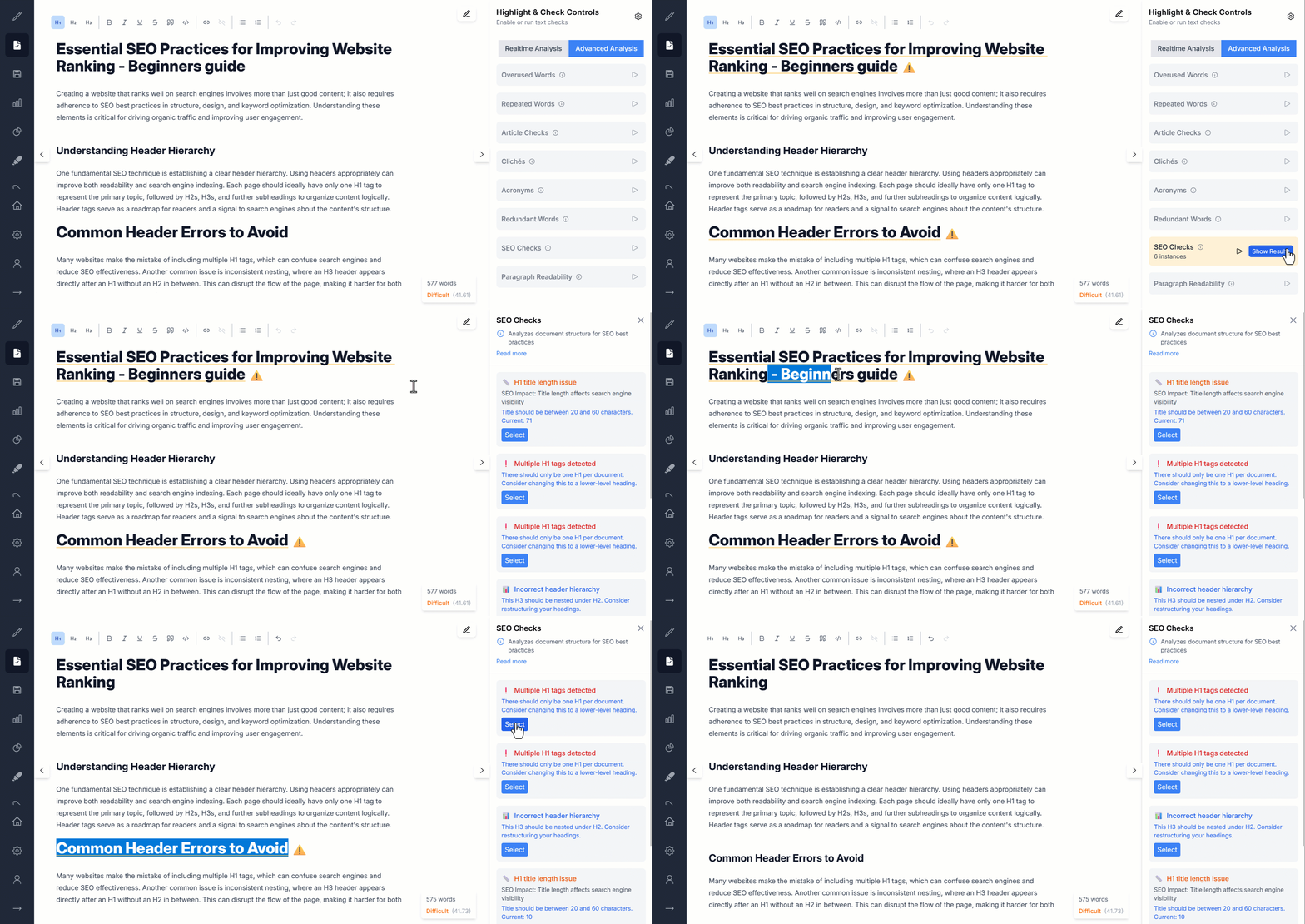
Open the Advanced Analysis tab in the Highlight & Check Controls panel and press play next to SEO Checks.
- 2
Review the issues
Problem headings are underlined and marked with a warning sign, and the panel explains what to change.
- 3
Select and restructure
Press Select to jump to a heading, then shorten it or change its level with the H1, H2, and H3 toolbar buttons.
What you get
The structure checks that matter most
You can write a great article and still bury it under a messy outline. Gorby checks the structure while you focus on the words.
Title length check
Gorby checks that your H1 is between 20 and 60 characters, so it fits in search results, and shows the current count.
One H1 per document
Every extra H1 is flagged, with a suggestion to change it to a lower-level heading.
Heading hierarchy
Skipped levels, like an H3 right after an H1, are flagged so your outline stays logical.
Every issue explained
Each result says what is wrong and how to fix it, like "This H3 should be nested under H2".
Marked in your text
Problem headings are underlined and get a warning sign, so you see them as you scroll.
Select to jump there
Select takes you to the heading, ready to be shortened or moved to the right level.
Make it yours
Make heading issues easy to spot
Pick an underline color that stands out next to your other highlights, so problem headings catch your eye.
- Underline color for heading issues
- Underline thickness, shared by all text checks
Settings
Changes are saved automatically.
SEO Checks
Analyzes content for SEO best practices
Highlight Color
Essential SEO Practices for Improving Website Ranking - Beginners guide
Click the color to see how a different underline looks.
Heading structure in three rules
The same rules SEO Checks uses, with a quick fix for each.
- One H1 per page
- Your H1 is the title. Every other section gets an H2 or lower.
- Before:
H1 A Beginner’s Guide to Composting
H1 What you need
After:H1 A Beginner’s Guide to Composting
H2 What you need
- Don’t skip levels
- Go down one level at a time. Going back up, from H3 to H2, is fine.
- Before:
H2 Why compost at home?
H4 Less waste
After:H2 Why compost at home?
H3 Less waste
- Keep the title 20 to 60 characters
- Long enough to describe the page, short enough to show in full.
- Before:
H1 The Complete Beginner’s Guide to Composting at Home, in Small Spaces, and on a Budget
After:H1 A Beginner’s Guide to Composting at Home
Keep polishing
Pairs well with
Keyword Density Analysis
Shows the most frequent words and phrases in your text, for SEO or self-editing.
Learn moreParagraph Readability
Scores each paragraph so you can see exactly which ones are hard to read.
Learn moreAcronyms Detection
Makes sure every acronym is spelled out the first time it appears.
Learn moreOverused Words Analysis
Finds the words you lean on too often, measured by how much of your text they take up.
Learn moreFAQ
Common questions
Want to see which words your page leans on? Try our free keyword density calculator. Still have a question? Email us at contact@gorby.app.
- What does SEO Checks look for?
- Three things in your heading structure: an H1 title shorter than 20 or longer than 60 characters, more than one H1 in the document, and headings that skip a level, like an H3 that comes right after an H1.
- Why should my title be 20 to 60 characters?
- Search results usually show around the first 60 characters of a title and cut off the rest. A very short title, on the other hand, rarely says enough about the page. Staying between 20 and 60 characters gives you room to describe the page and still be seen in full.
- Is having more than one H1 bad for SEO?
- Search engines can handle pages with more than one H1, but a single H1 is still the clearest signal of what a page is about. It also gives readers and screen reader users one obvious title, with every section below it.
- What is heading hierarchy?
- The order of your headings: H2s sit under the H1, H3s under an H2, and so on. When a heading skips a level, the outline stops making sense to readers, screen readers, and search engines. Going back up a level, from an H3 to the next H2, is fine.
- Does SEO Checks change my headings?
- No. It points out the issues and leaves the changes to you. Press Select to jump to a heading, then shorten it or change its level with the H1, H2, and H3 buttons in the toolbar.
- Does it check keywords or meta descriptions?
- No, SEO Checks focuses on your heading structure. To see which words and phrases your text uses most, try Keyword Density Analysis.
- Is SEO Checks included in the free plan?
- SEO Checks is one of the Advanced Analysis checks, which come with every paid plan. The free plan includes real-time checks like hard-to-read sentences and passive voice.
- Does it work in the desktop app?
- Yes. SEO Checks works the same way in the web app and the Gorby desktop app for Windows. With a plan, Pro checks stay unlocked for up to 5 days offline.
Publish with a structure search engines can follow
Run SEO Checks on your next draft and fix the headings before anyone else sees them.