
Saved Texts
Build and manage a personal library of your writing projects directly in your browser. Save texts with custom names and descriptions, create backups, and export your work as Word documents — all with complete privacy.
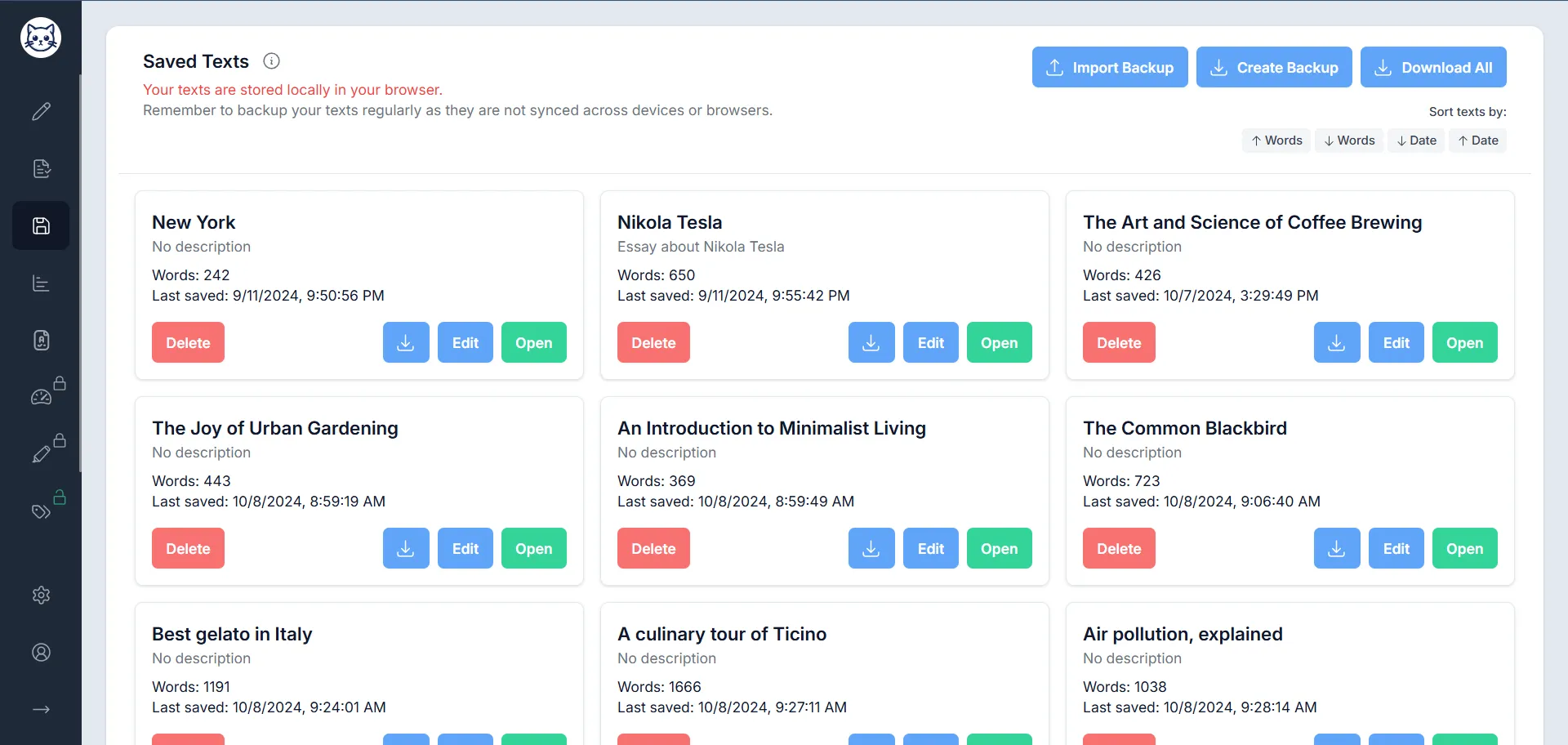
How the Saved Texts Feature Works
Gorby's Saved Texts feature gives you a personal writing library stored securely in your browser. Save your work, stay organized across multiple projects, and keep your writing backed up and accessible whenever you need it.
- Saving Your Texts
Save your work directly from the main writing view with a single click. Give your text a name, add an optional description.
- Managing Your Library
Access all your saved texts from the dedicated Saved Texts view. See details like title, description, word count, format, and last saved date — then open, edit, or delete any entry.
- Backup & Export
Since texts are stored locally in your browser, regular backups are essential. Create backup files, import them later, and download individual texts or your entire library as Word documents.
- Sorting Your Library
Keep your library organized the way you want. Sort your saved texts by word count or by the date they were last saved, in either ascending or descending order.
Save Your Work in Seconds
Saving a text is quick and flexible. Access it directly from the writing toolbar and customize how your text is stored.
How to Save a Text
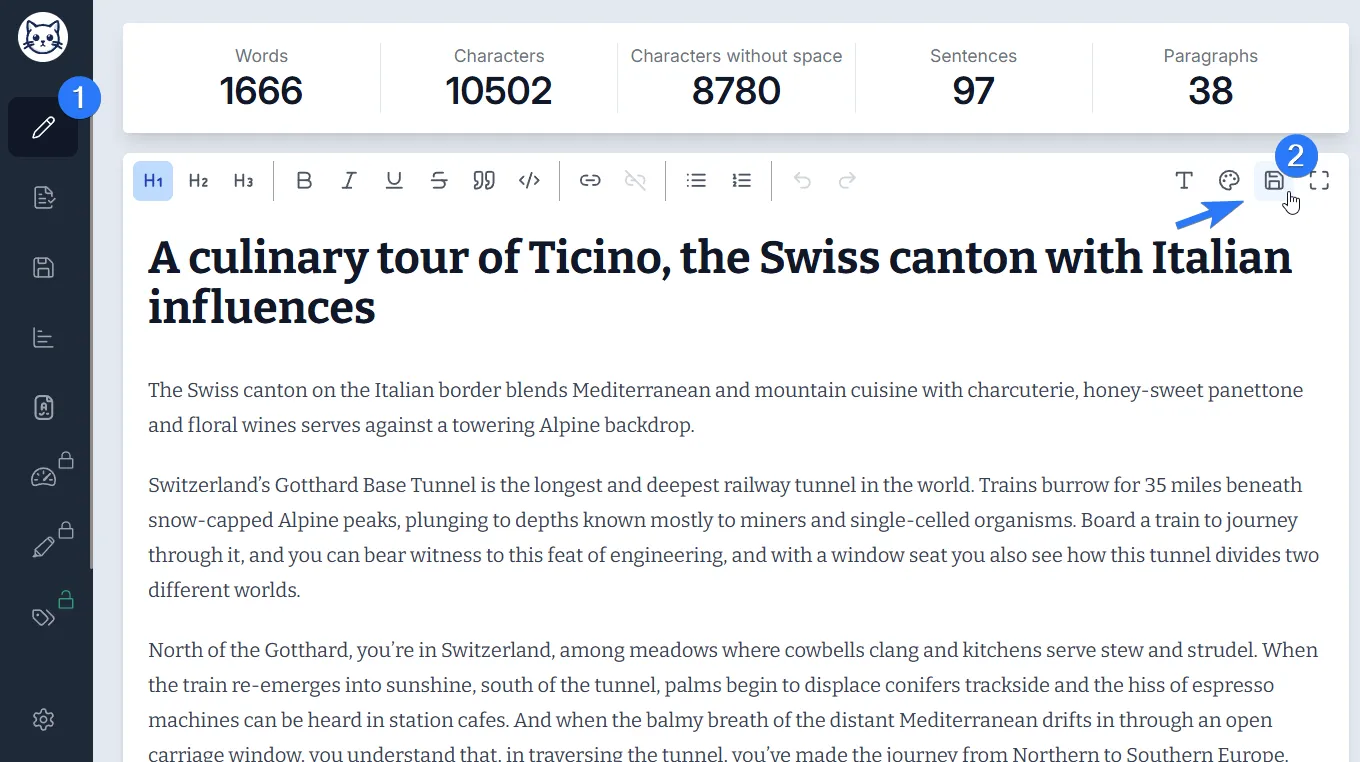
Click the Save button in the Write view
Find the "Save" button in the main writing toolbar and click it to open the save dialog.
Name your text
Enter a required name for the text, and optionally add a description to help you remember its content later.
Text Management Tools
Every saved text comes with a full set of management options, plus bulk tools to handle your entire library at once.
Individual Text Operations
Available for every saved text
Each saved text in your library has its own set of actions so you can manage entries individually with precision.
- Open — Load the text into the editor for further work
- Edit — Modify the text's title and description
- Download — Save the text as a Word (.doc) file
- Delete — Remove the text from your saved collection
Bulk Operations
Manage your entire library at once
Handle your entire collection efficiently with tools designed to work across all your saved texts simultaneously.
- Download All — Export all saved texts as separate Word documents
- Create Backup — Generate a backup file containing all your saved texts
- Import Backup — Restore texts from a previously created backup file
Local Storage & Privacy
Your texts are stored securely in your browser's local storage — no account required, no data sent to external servers. Your writing stays private by design.
What local storage means
Texts are saved directly in your browser and are instantly accessible without a network connection. They are not synced across devices or different browsers automatically.
Protect your work
Clearing your browser data or uninstalling your browser will remove saved texts. Use the "Create Backup" button regularly to generate a backup file you can import later.
Wide compatibility
All texts can be downloaded as Word (.doc) files, ensuring compatibility with most word processing software and making it easy to share your writing with others.
Storage Limits
All users get access to essential features — backups, exports, and local storage. The difference between plans is the library size.
Free
Up to 3 textsSave up to 3 texts in your library. All backup and export tools are included at no cost.
Premium
UnlimitedUnlimited texts in your library. No caps on how much writing you can store.
Why Use Saved Texts?
Keep your writing organized, safe, and always within reach.
Stay Organized
Keep multiple writing projects tidy with custom names and descriptions for every saved text.
Never Lose Work
Regular backups mean your writing is always protected, even if browser data is cleared.
Multiple Projects
Switch between drafts, essays, or articles without losing your place in any of them.
Easy Export
Download texts as Word files for sharing, editing in other apps, or archiving outside the browser.
Start Building Your Writing Library
Save, organize, and back up your writing projects with Gorby's Saved Texts feature. Your work stays private, accessible, and always exportable.